How to test a mobile app
To test a mobile app, test its functions as you would on the web, then add what only a phone brings: interruptions such as a call or a locked screen, rotation, gestures and the on-screen keyboard, slow or lost connections, permissions, battery, and installs and updates. Choose these checks by what the app actually uses, run them first in an emulator or simulator, and confirm the important ones on real devices. When something fails, read the app's log and watch its traffic through a proxy such as Charles to show the developer where it went wrong.
- 3 groups
- hardware, device software, connectivity
- Real devices
- the reference for a pass
- Log and traffic
- the evidence a mobile report needs
How to test a mobile app, step by step
- Step 1
Find out what the app is and what it uses
Native, hybrid or web; the oldest OS version it supports; the permissions it asks for; the hardware it uses, such as the camera or location. This decides which checks apply.
- Step 2
Pick the checks from the mobile list
Interruptions, rotation, gestures, keyboard, screens, network, permissions, battery, install and update. The list is a menu: take what the app's functions need.
- Step 3
Choose the devices
Start from usage data for the markets where the app is sold. Keep at least one device on the oldest supported OS version, and cover pairs of parameters, not every combination.
- Step 4
Run the checks in an emulator or simulator
They are free, quick to reset and can play a call, a location or a slow network on demand. Use them for most of the work.
- Step 5
Confirm on real devices
Run the critical paths and anything that depends on hardware, touch or performance on real phones. A pass counts only there.
- Step 6
Read the log and the traffic when something fails
Save the app's log around the failure and capture the requests through a proxy. Together they show whether the app, the server or the network is at fault.
- Step 7
Report with the full environment
Device model, OS version, app version and build, network, orientation, then the steps, the log excerpt and the request.
What breaks only on a phone
A phone app does everything a web page does and lives in a harder place: it is interrupted, turned, squeezed onto small screens and moved between networks. Mobile checks fall into three groups: the device's hardware, the device's software (the OS and other apps), and connectivity. Functional, usability, security and performance testing apply on top of all three.
Not every app needs every check. An app that asks for no permissions has no permission tests; an app with no camera feature needs no camera tests. Testing depends on context, and the app's functions choose from the list.
Interruptions
A call, a message, a notification, an alarm, the charger, low battery, switching apps, the screen locking. Afterwards the app keeps its state, data and session, with no freeze and no crash.
Rotation
After the device turns, the app keeps typed input and shown data. Turn it several times in a row, in different states: one turn often shows nothing.
Gestures and keyboard
Tap, double tap, long press, swipe, scroll, drag, pinch to zoom, pull to refresh. The on-screen keyboard does not hide the field you type in or the button you need next.
Screens
Sizes, aspect ratios, cut-outs and densities: elements scale, do not overlap, and images stay sharp.
Connectivity
Wi-Fi, mobile data, a slow network, no network, airplane mode, and switching networks without losing data. The app says clearly when it cannot reach the server.
Permissions
Asked when needed and only for what the app uses. Denied or revoked later, only the feature that needs it stops.
Battery
Full, low, battery saver, charging. Data survives a dying battery, and the app does not drain it in the background.
Install, update, removal
From the store, from a file, from a computer; interrupted and resumed. An update keeps the user's data; a clean reinstall starts fresh.
Device settings
The OS language, dark theme, text size and battery saver. The app follows them and stays readable.
Native, hybrid and web apps
A native app is built for one platform with its own tools. A web app is a site opened in the phone's browser. A hybrid app is a native shell that shows web pages inside it, in a component called a WebView. The type tells you where a bug can live.
Shelf for Android, the practice app the course uses, is hybrid: a native Java shell that shows the Shelf web shop in a WebView. It runs on Android 8.0 and later and declares only the INTERNET and ACCESS_NETWORK_STATE permissions, so it never shows a permission prompt and the permission checks do not apply to it. A wrong price on a product page is a shop bug, visible in a desktop browser too. The three-dot menu (Catalog, Reload, Share this page, Server address, About this app), the system Back button and rotation belong to the shell, and only the app can get them wrong.
Emulator, simulator, real device or cloud farm
An emulator imitates the device's hardware and runs the real operating system: the Android emulator, which comes with Android Studio, runs a real Android image. A simulator imitates only the system's behavior and screens, and the app has to be built specially for it. Apple offers no iOS emulator, only the Simulator inside Xcode, and Xcode runs only on a Mac. The two words are often used loosely, which is why interviewers ask about the difference.
The Android emulator can play incoming calls and text messages, a location, network speeds, rotation and other sensors. It is slower than a device and does not reproduce some things well, such as multi-touch. The iOS Simulator cannot drain the battery, take a real call or slow the network, and an App Store build does not install in it.
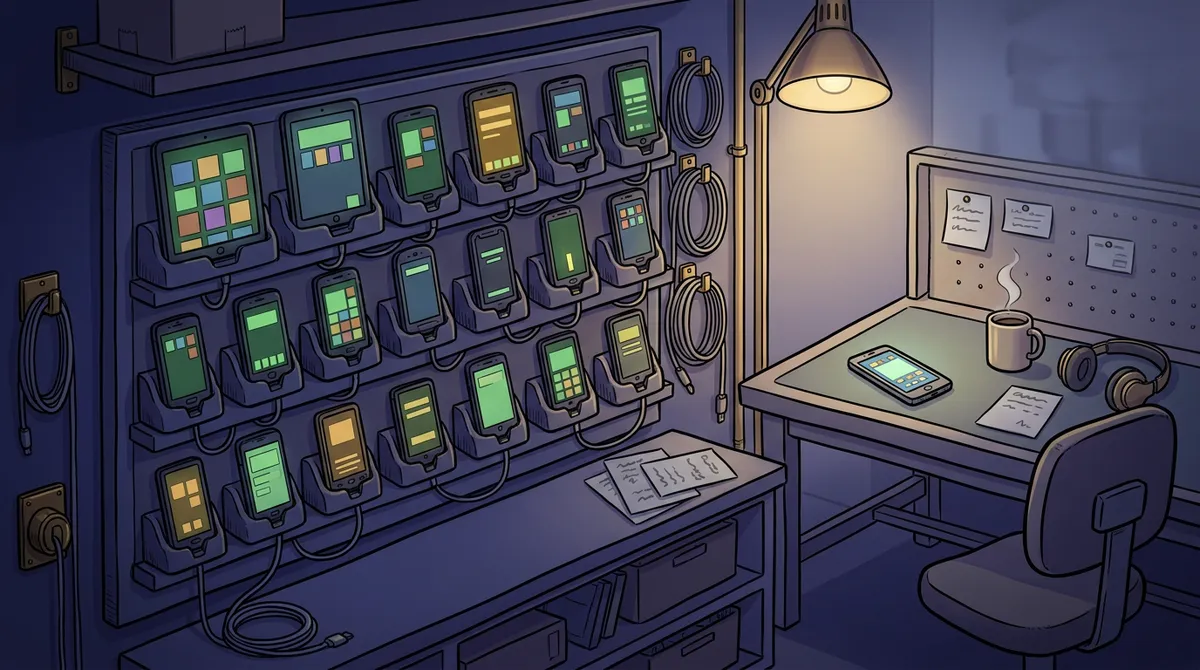
Real devices are the reference: a check passes for real only there. They cost money, age and never cover everything. A cloud device farm gives you real devices in a provider's data center, used over the internet. It suits occasional use and devices the team does not own; tests of NFC, Bluetooth and battery are hard there, and it is usually paid by the time used. A common strategy is emulators and simulators early, real devices later.
To choose devices, start from the team's own analytics. Google points Android developers to "Reach and devices" in the Google Play Console, and Apple publishes the share of iOS versions among devices that use the App Store. Keep one device on the oldest OS version the app supports, and buy for features that need hardware, such as a cut-out, fingerprint or face unlock.
Reading the app's log
A mobile app writes a log while it runs, and a crash leaves its cause there. On Android the log is called Logcat. In Android Studio, open it with View > Tool Windows > Logcat and filter with keys such as package:mine for your app, level: for a minimum level and is:crash for crashes. The levels are VERBOSE, DEBUG, INFO, WARN, ERROR and ASSERT.
Without Android Studio, adb (Android Debug Bridge) reads the same log from the command line. Shelf writes its own lines under the tag Shelf, and a crash is written under AndroidRuntime, so one command shows both. A crash block starts with FATAL EXCEPTION: main and the process name, and the exception and the stack follow. Copy the block as text into the report.
On iOS, the Simulator runs on the Mac, so its logs and crash reports are read on the Mac: crash reports land as .ips files in ~/Library/Logs/DiagnosticReports.
$ adb devices -l
emulator-5554 device product:sdk_gphone64_arm64 ...
$ adb install -r app-debug.apk
Performing Streamed Install
Success
$ adb logcat -s Shelf AndroidRuntime
I Shelf: start: Shelf 1.0.0 (debug), shop https://<your Shelf address>

Crashes only: adb logcat -b crash -d
Watching the app's traffic through a proxy
A phone app has no DevTools. To see its requests and responses, you put a proxy between the phone and the server: a program on your computer that every request passes through and that shows each one. Charles is the classic choice; Proxyman, Fiddler Everywhere and Postman's proxy do the same job. Their default ports differ: 8888 for Charles, 9090 for Proxyman, 8866 for Fiddler Everywhere, 5559 for Postman on macOS and Windows.
On an Android emulator or phone, set the proxy in the device's Wi-Fi settings (Settings > Network & Internet > Wi-Fi, select the network, enter the proxy manually): the computer's address and the proxy's port. From the emulator, the computer is 10.0.2.2. Browsers and most apps use this proxy, though some ignore it. On an iPhone it is the network's HTTP Proxy setting, set to Manual.
HTTPS traffic stays unreadable until the device trusts the proxy's certificate. With Charles you browse to chls.pro/ssl on the device, install the certificate, and turn on SSL proxying for the host. On Android there is a catch: apps that target Android 7.0 (API level 24) and later trust only the system's certificates by default, not the ones a user installs. A release build usually cannot be read; ask the developers for a debug build that trusts user certificates. Shelf's debug build does, its release build does not.
Once traffic flows, read each request as you would in a browser: method, address, status, headers and body. When you add a product to the cart in Shelf, the app sends POST /api/cart/items with the body {"product_id":<id>,"quantity":1} and the header Authorization: Bearer <token>.
A proxy can also change traffic, which is how you test what the app does when the server misbehaves. A breakpoint stops a request or response so you can edit it; a rewrite rule changes every matching one, such as replacing status 200 with 404; throttling plays a slow network. Many operators have shut down 3G, so "test on 3G" now means "test on a slow network", and a proxy's 3G preset is the way to play it.
Testing through a proxy is not the whole test. Run the critical paths once more on a real device with no proxy at all, because the proxy itself can change timing and certificates.
What a mobile bug report adds
A mobile bug report has the same parts as any other, and a longer environment. The same steps can pass on one phone and fail on another, so the developer needs the device, the OS version and the exact app build. Use "tap", never "click", and "press" only for a physical button.
Copy the template and replace each part in angle brackets. The environment below is filled in with the values of Shelf for Android in the emulator.
Title: <Screen>: <what goes wrong> when <condition>
App: Shelf 1.0.0 (debug), shop https://<your Shelf address>
Device: Pixel 7 emulator, Android 15 (API 35)
Network: <Wi-Fi | mobile data | slow network | offline>, proxy <none | Charles>
Orientation: <portrait | landscape>
Preconditions: <signed in or not, what is in the cart>
Steps to reproduce:
  1. <one action: tap, swipe, rotate, lock the screen>
Expected result: <what should happen>
Actual result: <what happens instead>. Reproduced <N of N> times.
Also on: <other devices and OS versions tried, passed or failed>
Attachments: <Logcat excerpt as text, the request and response, a screen recording>
Where to learn this
 12 lessons
Questions and answers
What is the difference between an emulator and a simulator?
An emulator imitates the device's hardware and runs the real operating system, as the Android emulator does. A simulator imitates only the system's behavior, and the app has to be built specially for it, as with the iOS Simulator in Xcode.
Can I test an iOS app on Windows?
Not with Apple's tools: the iOS Simulator comes with Xcode, and Xcode runs only on a Mac. Without a Mac or an iPhone, the remaining option is a real iPhone in a cloud device farm.
Is testing on an emulator enough?
No. Use emulators and simulators for most checks, then confirm the critical paths and anything that depends on hardware, touch, battery or performance on real devices.
Why can't I see an app's HTTPS traffic in Charles?
The device must trust the proxy's certificate, and SSL proxying must be on for the host. On Android, apps that target 7.0 and later trust user-installed certificates only if the build allows it, so ask for a debug build.
Do I need to code to test mobile apps?
No. Manual mobile testing needs the platform's tools (an emulator, the log, a proxy) and a few commands such as adb logcat, not programming.
More guides
- Start hereHow to become a software testerWhat a software tester does, what to learn and in what order, and how to practice without a job: six steps from zero to a small portfolio.
- Bug reportsHow to write a bug reportThe fields of a bug report, a template to copy, a complete example from a practice shop, severity and priority with examples, and the mistakes that send a report back to you.
- Test casesHow to write test casesThe parts of a test case, a template, a complete example and its negative cases, the difference between a test case, a test scenario and a checklist, and how to fix a weak case.
- Test designBoundary value analysis and equivalence partitioning, with examplesHow to split inputs into equivalence partitions, pick boundary values with the 2-value and 3-value methods, and choose the step, worked through four fields of a practice shop.
- Bug reportsSeverity vs priority, with examplesWhat severity and priority mean, who sets each, the scales teams use, and all four combinations worked through on one practice shop, with a short answer for interviews.
- Test documentationTest case vs test scenario vs checklistWhat a test scenario, a checklist and a test case are, one shop feature written all three ways, when to use which, and how a scenario turns into checklists and test cases.
- Test designHow to test a login pageTest cases for a login page derived from partitions, a decision table, boundaries and states, plus the security checks every login page needs, worked through on a practice shop.
- API testingAPI testing with Postman: a beginner's guideHow to send your first requests in Postman, read the response, keep addresses and tokens in variables, test 401 and 403, add a status check and run a collection, on a practice shop's API.
- API testingHow to test a REST API manually: a checklistA manual REST API testing checklist without code: reading the OpenAPI documentation, status codes, body, headers, 401 versus 403, negative cases and state, with example requests to a practice shop.
- DatabasesSQL for testers: check what the app savedHow testers use SQL: the queries that check what an online shop saved after an order (order row, items, payments), SELECT, WHERE, GROUP BY and JOIN on a real schema, and the mistakes to avoid.
- Web testingChrome DevTools for testers: how to collect evidence for a bug reportWhich Chrome DevTools panels a tester needs and how to use them to collect the Console error, the request, the server's response and the storage values that make a web bug report reproducible.
- Test processSmoke vs sanity vs regression testingWhat smoke, sanity, regression testing and retesting usually mean, why teams use the names differently, how to ask on a new team, and how to choose the checks for a new build.
See the first course
The full outline of every course is available: you can see each lesson before you start.